Translate in django CMS
This guide shows how editors translate pages and other content in django CMS with the
djangocms-ponyglot connector: request a translation, review the draft, publish it. It works
for every frontend-editable content type: pages, blog posts, or your own models.
Open the translations dialog
Open the content in django CMS, in edit or preview mode. In the toolbar, open Language: the first entry is Ponyglot translations. It says how many languages have something to review.
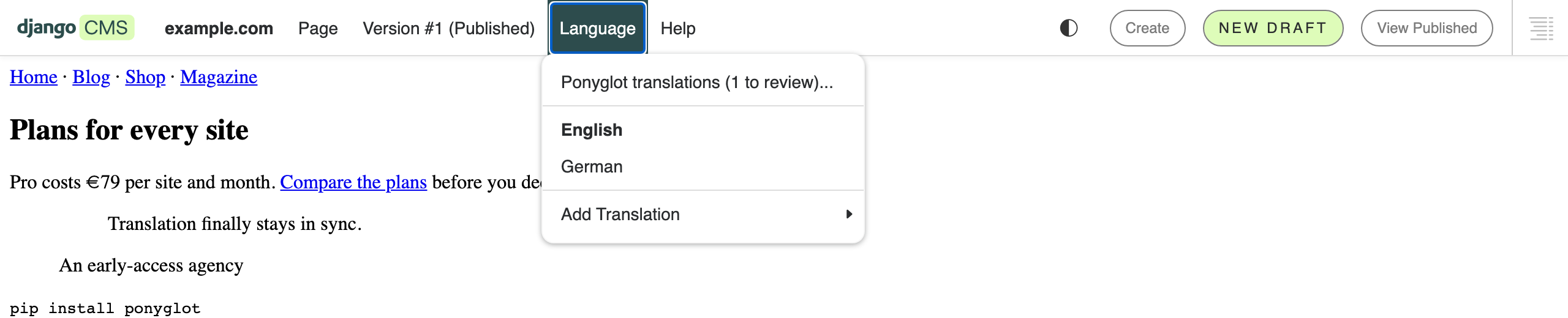
The entry in the toolbar’s language menu.
The dialog shows, per language, what to do next:
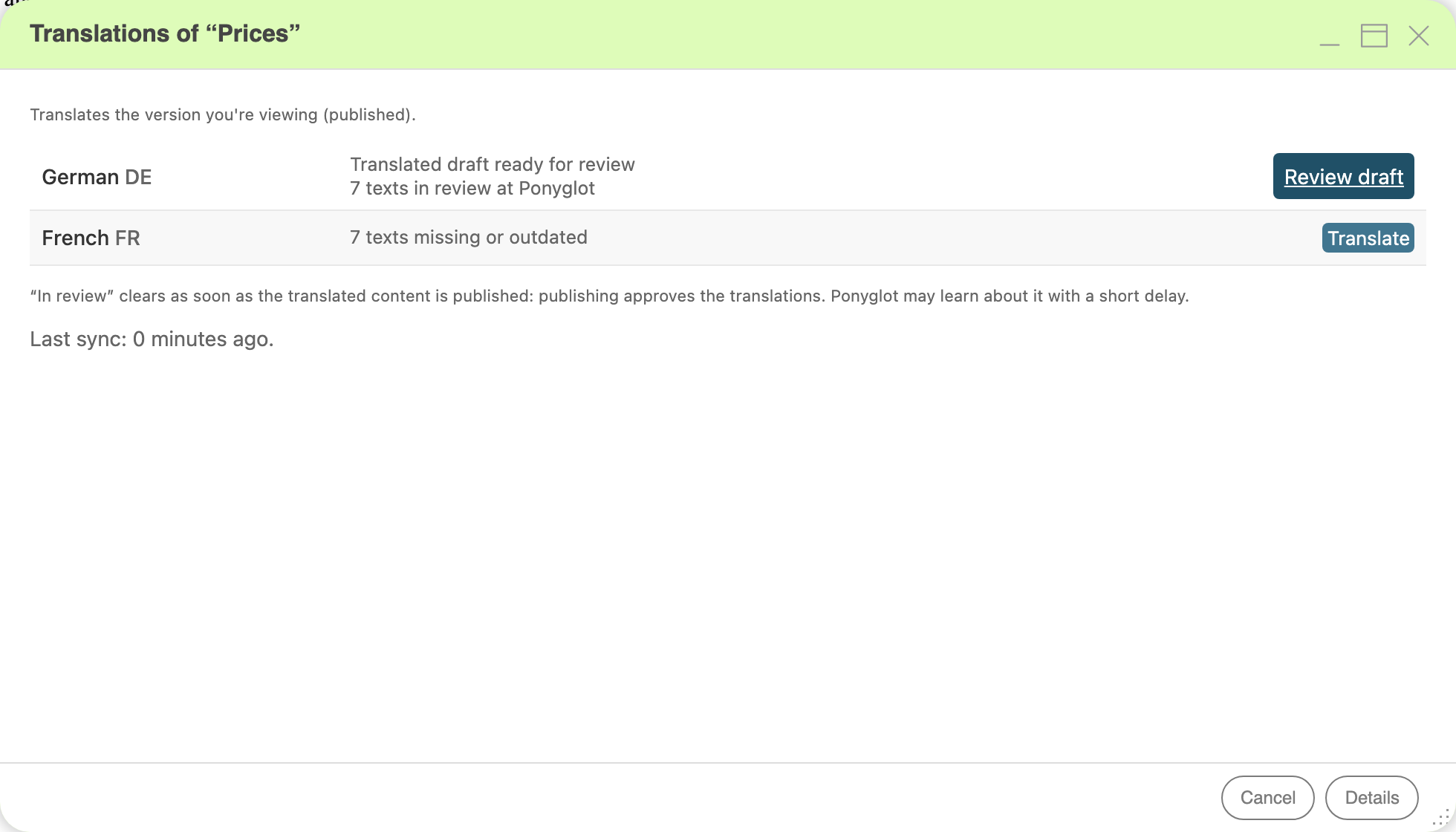
German waits for review, French isn’t translated yet.
- Translate
Texts are missing or outdated in this language. Translate requests the translation; with several languages, Translate all missing in the footer requests all of them.
- Review draft
A translated draft is ready. It opens the draft in that language.
- Apply to draft
Translations are waiting because someone edited the draft since Ponyglot wrote it. Ponyglot never overwrites an editor’s changes: Apply to draft writes them now.
- Texts held by a quality check
Ponyglot found an error, for example a changed link, and holds the translation back. The link opens it in the Ponyglot dashboard, the only place where these are decided (see Work with the review queue).
The dialog translates the version you’re viewing: the published page, or your draft if you’re editing one. It says which at the top.
Get the translations
Translations come back with the site’s regular sync (python manage.py ponyglot sync, from
cron or a worker). If no sync ran in the last 15 minutes, opening the dialog fetches this
page’s translations itself, and Fetch translations now appears in the footer.
Review and publish
The translation arrives as a draft in its language. Nothing is published automatically.
Choose Review draft, or switch the language in the toolbar.
Check the page and correct it like any other content.
Publish it.
Publishing approves the translation, with your corrections. They go into the translation memory, so the same sentence is free next time. While a draft waits, the dialog shows its texts as in review; that clears once the page is published (Ponyglot may learn about it with a short delay). Discarding or archiving the draft tells Ponyglot to translate it again.
Note
Content that isn’t versioned is never written automatically, because writing it would publish it. Its translations wait in the dialog until you choose Apply (publishes).
When the page structure changes
Plugins you add to the source page are added to the translated drafts at the same place, with their children. A plugin an editor removed from a translation stays removed: its text waits, and Details lists it with Copy plugin tree from source, which rebuilds the draft’s structure from the source.
More options
Details in the dialog’s footer opens the full status: every text per language (✓, outdated, in review, missing, waiting for QA), the recent translation jobs and the plugin tree copy. To keep content out of translation, use Ponyglot › Exclusions from translation in the admin.