Connect your Django site
In this tutorial you connect a Django site to Ponyglot and get your first page translated, in the order the dashboard’s Getting started guides you through. By the end you will have:
a site in Ponyglot that knows your stack and your languages,
the connector installed on your site and synced,
one page translated into German, waiting in your CMS as a draft,
approved it by publishing it, so your translation memory learned its first texts.
It takes about 15 minutes. The examples use django CMS with django-parler; the steps are the same for django-modeltranslation, only the package names differ.
Before you start
You need:
an invitation to Ponyglot (during early access you join through an invitation email), or an account with an organization,
a Django 5.2+ project you can install packages into and deploy,
a subscription for the translation step (see Plans and usage). Everything before that step works without one.
Add your site
On your organization’s page, Getting started shows a card per site with its progress and the next step. Without a site yet, choose Add your site.

Each site’s progress on the organization page.
Fill in:
Field |
Example |
|---|---|
Name |
Acme website |
Base URL |
|
Source language |
English |
Adapters |
django CMS, django-parler |
Engines |
DeepL and LLM |
Then add the target languages, for example German and French. Content is only sent to the engines you enable here.
Connect it
Open the site. Getting started is a list of five steps: finished ones are ticked with their result, the current one is open. Any step can be opened to read ahead.
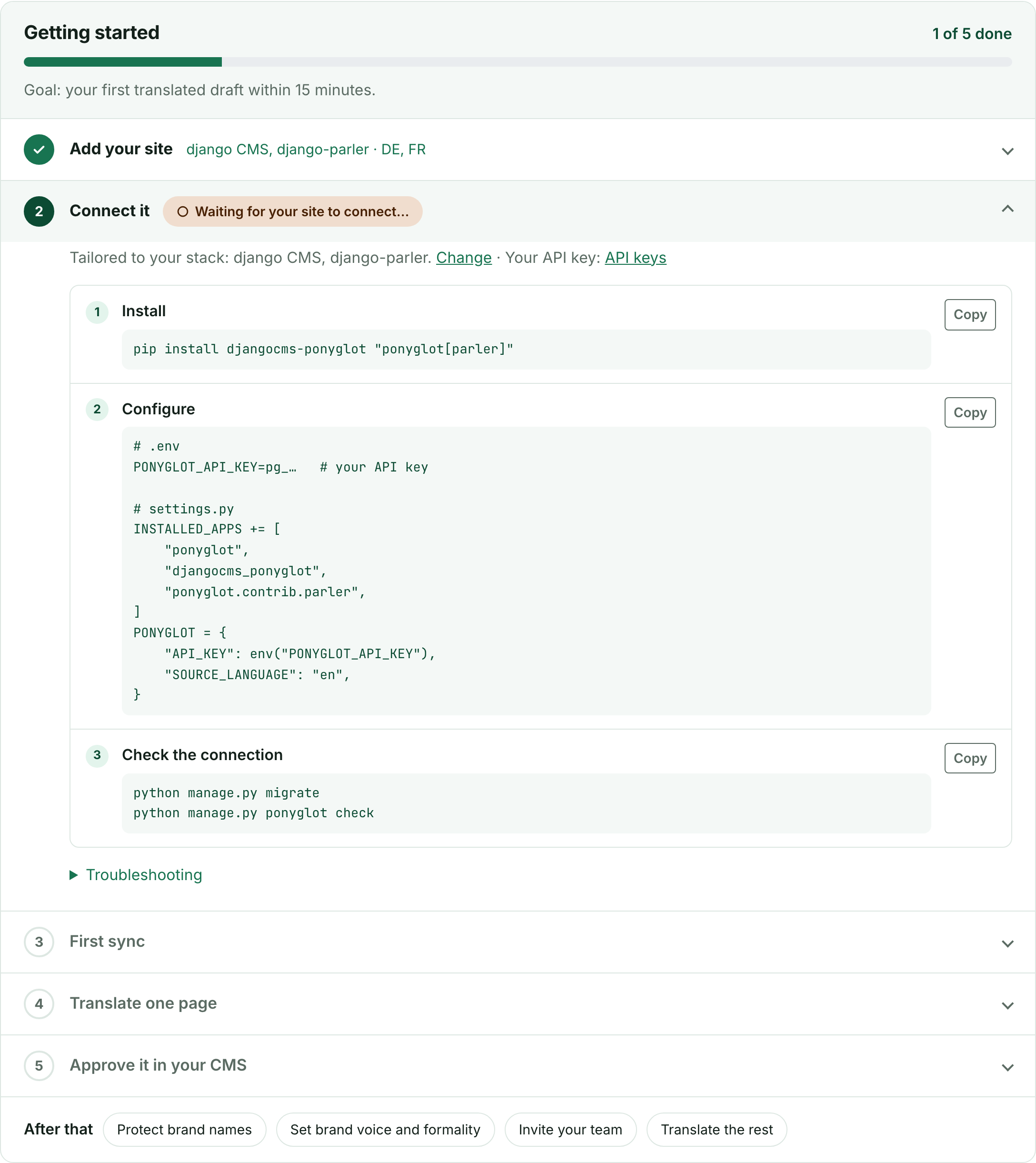
The current step, “Connect it”, with the commands for your stack.
The commands are tailored to the adapters you chose. First create an API key: scroll to API keys on the site’s page, enter a name such as “Production”, and choose Create API key. The next page shows the key once, and the same commands with the key filled in:
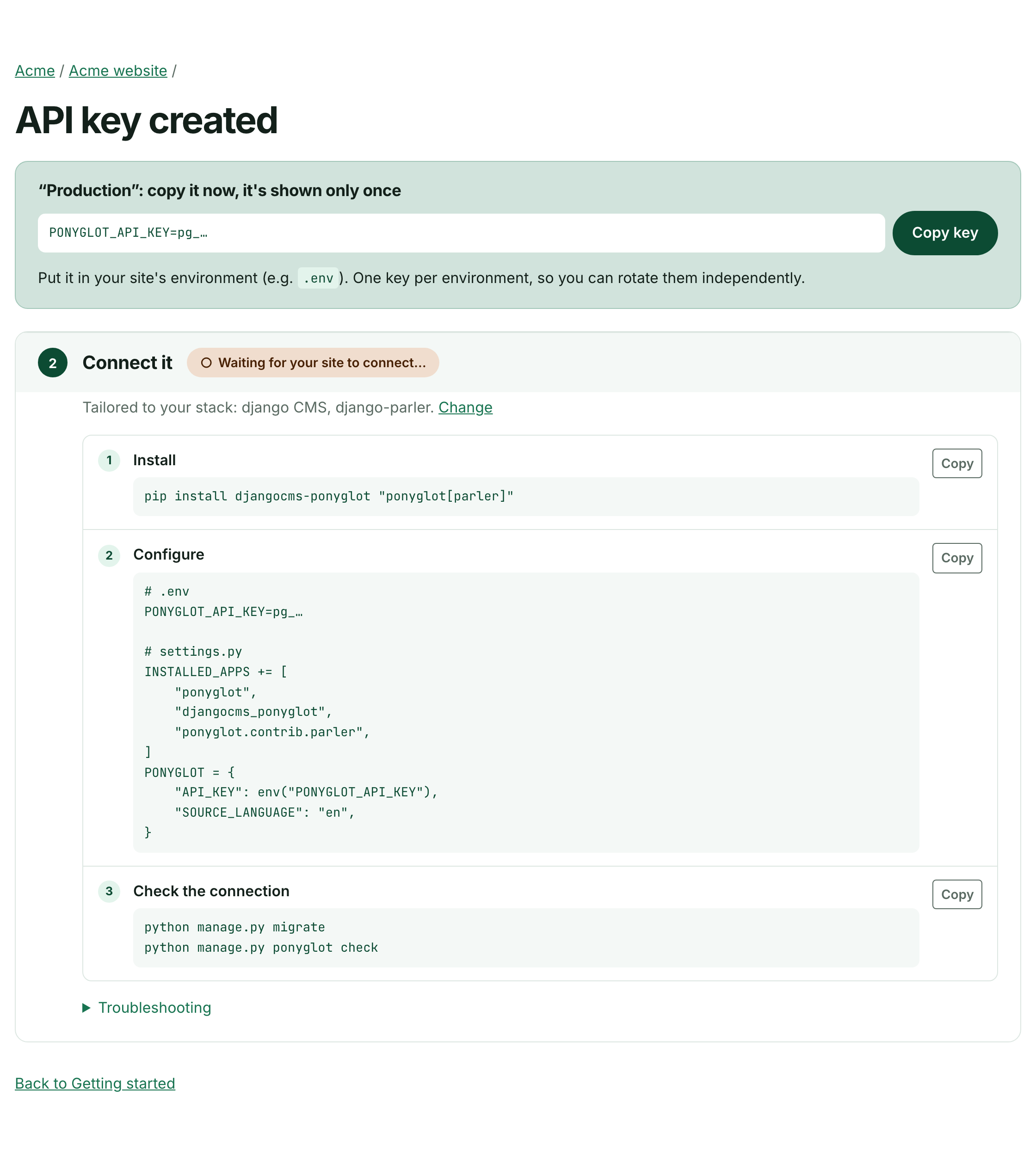
Copy the key now: Ponyglot stores only a hash of it.
Then, on your site:
Install the packages, for example
pip install djangocms-ponyglot "ponyglot[parler]".Configure: put the key in your environment and add the apps and the
PONYGLOTsetting tosettings.py.Check the connection:
python manage.py migrate, thenpython manage.py ponyglot check.
The status next to the step changes from Waiting for your site to connect… to Connected as soon as the check reaches Ponyglot. You don’t need to reload the page.
Tip
If it stays on waiting, open Troubleshooting in the step: a curl command shows whether
your key reaches the API.
Send your content
The next step, First sync, sends your existing content once:
$ python manage.py ponyglot backfill
Nothing is translated yet. Ponyglot now knows your pages and objects, and the existing translations: they are imported as approved, so nothing is translated twice.
From now on, run python manage.py ponyglot sync regularly: every 5 minutes from cron, or as a
worker with python manage.py ponyglot sync --loop 60. It sends what changed and brings
translations back.
Translate one page
Start small: one page, one language.
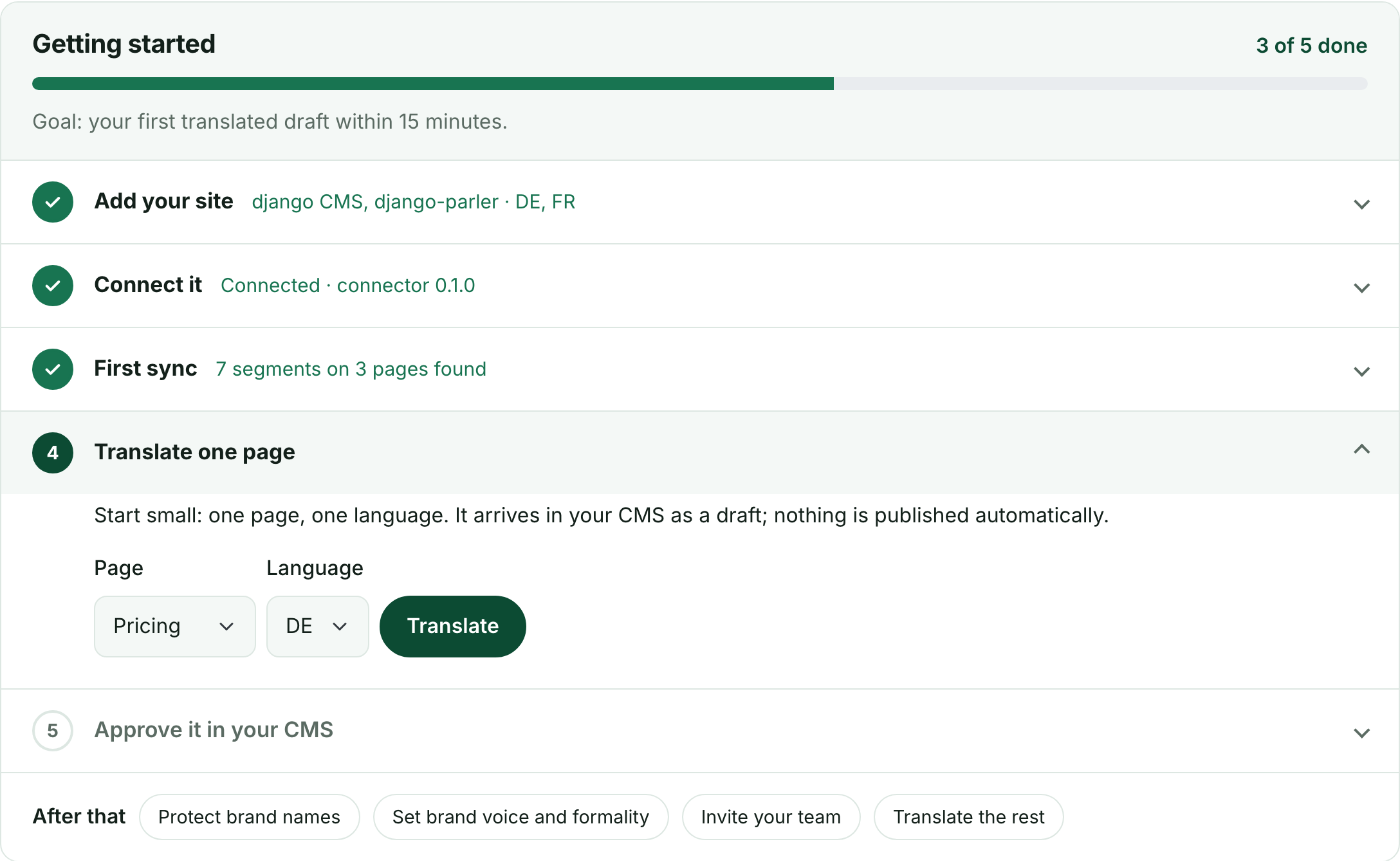
Three steps done; pick a page and a language.
Choose a page, for example Pricing, and German, then Translate. The translation runs in the background and takes a few seconds. With the next sync, it arrives in your CMS as a German draft. Nothing is published automatically.
Approve it in your CMS
Open the page in django CMS and choose Language › Ponyglot translations in the toolbar. The dialog shows the German draft:
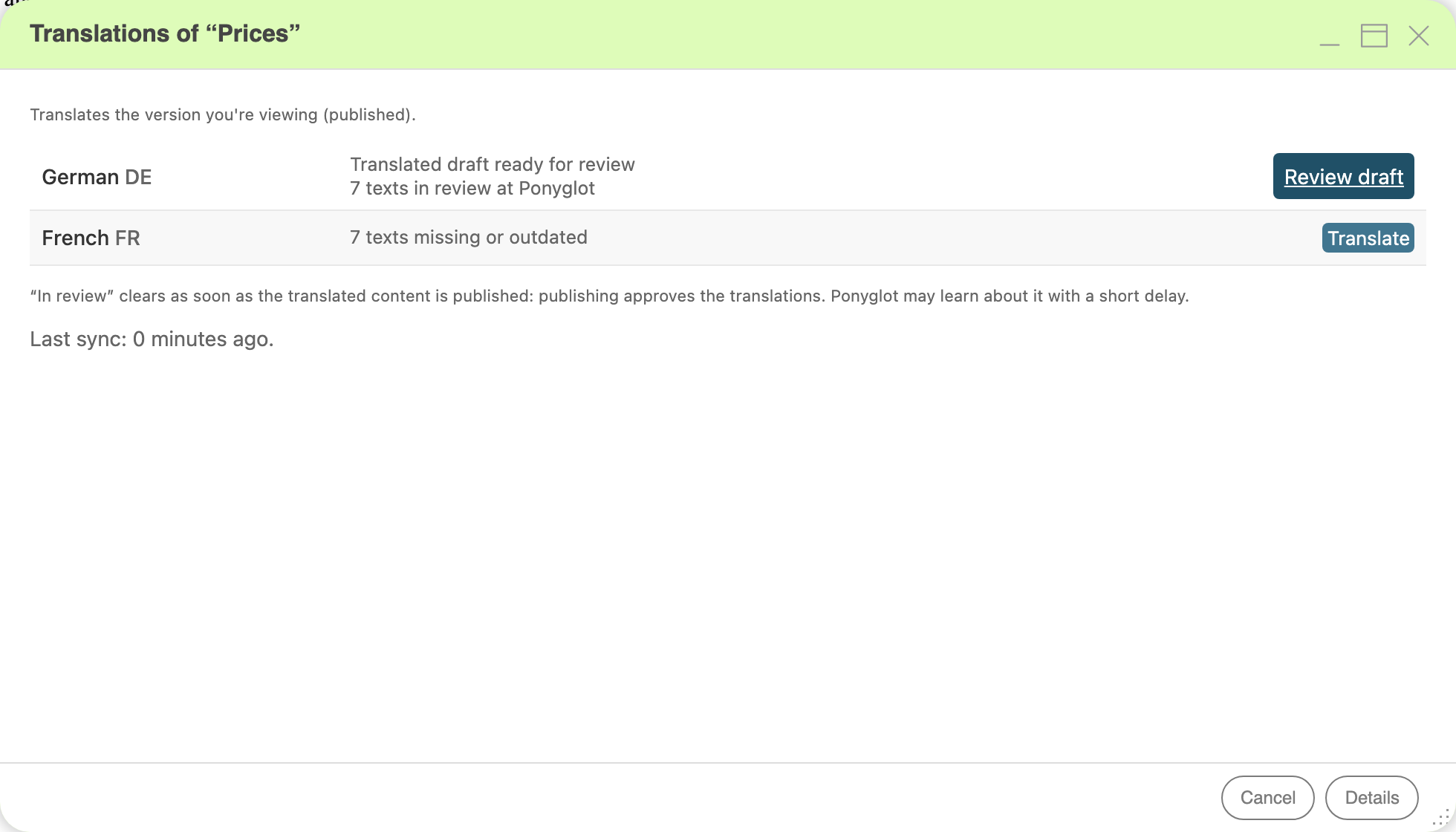
The translations dialog in django CMS.
Choose Review draft, check the German page, correct it if you like, and publish it. Publishing approves the translation: your corrections go into the translation memory, so the same sentence costs nothing next time. Ponyglot may learn about the publishing with a short delay (the next sync).
Back in the dashboard, all five steps are ticked: You’re set up.
What you learned
Getting started detects each step from what happened: you never tick anything.
The connector syncs in both directions: it sends what changed and brings translations back.
Translations arrive as drafts. Editors approve them by publishing, and every approval teaches the translation memory.
Next steps
Translate in django CMS: the toolbar dialog in daily work.
Translate models in the admin: products, posts and other models.
Manage the glossary keeps brand names and key terms consistent.
Your first translation shows what the connector does behind the scenes, with the API.