Translate your first model object
Translate one product, post or other Django model object into German, review the suggestions in the admin, and save your corrections to the shared translation memory.
Allow about 15 minutes once your account and Django project are ready, plus review time. This tutorial uses an existing translated model; it doesn’t require a CMS.
Before you start
An account with a Ponyglot organization and the admin or owner role. During early access, request an invitation.
A Python 3.10+, Django 5.2+ project using django-parler or django-modeltranslation, which you can install packages into and deploy.
One model already configured for English and German, with an admin and an object containing English source text but no German translation. We’ll call it a product named Pony mug.
Permission to change the model and Can change translation suggestion in the Django admin.
Connecting and importing work before subscribing. For the translation step, an organization owner must choose a subscription that covers the site under Billing; see Manage billing and check usage.
Use a test object that you are comfortable updating. Applying a model translation writes to your data; whether it appears publicly depends on your application’s normal behavior.
For a staging environment, set up its own Ponyglot site first. You can practice translation and review there without teaching test wording to the shared memory.
Add the site and get a key
If you followed the staging guide, use that site’s key and continue at Connect your project below.
In the Ponyglot dashboard, open your organization and choose Add your site. Enter your site’s name and base URL, choose English as its source language, and select the adapter for your model library: django-parler or django-modeltranslation. Enable DeepL for this English-to-German example, then add German as a target language.
On the site’s page, under API keys, name a key and choose Create API key. Copy it now; it is shown only once.
Connect your project
Complete Install the packages and Configure in Install and configure a connector for your library, then return here to check the connection. The package and apps differ:
Library |
Install from PyPI |
Add to |
|---|---|---|
django-parler |
|
|
django-modeltranslation |
|
|
Set PONYGLOT_API_KEY in your project’s environment and add this to settings.py:
import os

PONYGLOT = {
    "API_KEY": os.environ["PONYGLOT_API_KEY"],
    "SOURCE_LANGUAGE": "en",
}
Make the variable available to the web process and management commands. Keep it out of
version control; Django only loads a .env file if your project is configured to do so.
Run:
$ python manage.py migrate
$ python manage.py ponyglot check
Check that the command reports Connected to site “…” with the expected site name and
lists German as writable. If the name is wrong, correct PONYGLOT_API_KEY and repeat the
check before continuing. Fix any language warnings too.
Then import your source content and existing translations:
$ python manage.py ponyglot backfill
Backfill doesn’t start translation jobs.
Now add the translation controls to your model’s existing admin. Open the product’s change form and check that you see Ponyglot translations.
Request one translation
Open Ponyglot translations on that object’s change form. In the German row, choose Translate. If an estimate needs confirmation, check it before continuing.
In the same Ponyglot translations view, find your job under Jobs. Refresh the page
while its Status is queued or running. When it shows succeeded, fetch the result:
$ python manage.py ponyglot sync
Reopen the product’s change form and select German. Suggestions appear beside its translated fields. Your stored German values are unchanged until you apply and save them.
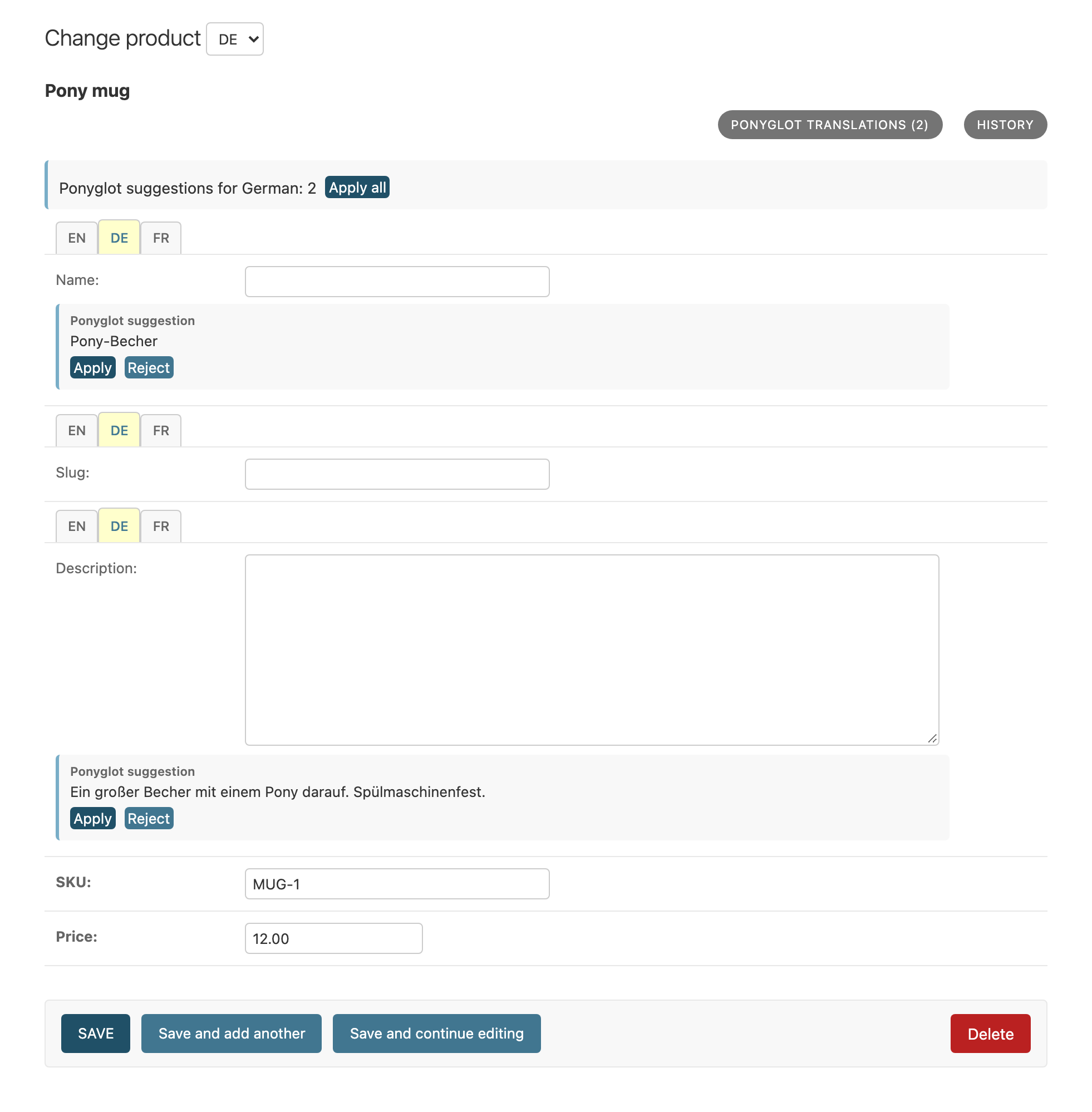
Review the suggested name and description beside the fields you normally edit.
Review and save
Choose Apply below each suggested field, adjust the wording if needed, then save the form. Check any QA findings before saving. You can reject a suggestion you don’t want.
Run the sync again to report your decisions:
$ python manage.py ponyglot sync
On a production site, open Memory in the Ponyglot dashboard, filter to English → German, and search for one of the object’s source texts. The approved translation, including your correction, is ready for reuse on matching content.
If the site is marked Staging site of, your approval doesn’t create a memory entry. This is expected: the object is updated on staging, and the shared memory keeps its existing wording.
If you get stuck
What you see |
What to do |
|---|---|
No Ponyglot translations button |
Check the mixin was added to the object’s existing admin, and reload after deploying. |
No German row |
Check German is configured in the project and in Ponyglot, and run |
No Translate action |
The object may already be translated or waiting for review. Start with an object whose German translation is missing. |
Translation needs a subscription |
Ask the owner to check Billing and that the site is covered. |
The job shows |
Open the site’s page in the Ponyglot dashboard and find the job under Jobs. Read the error beneath its status and resolve it before requesting the translation again. |
No suggestions after translation |
Check the job finished, run |
Next steps
Run the sync so editors can work without running commands.
See what changes and what is reused to try an edit and reuse approved wording.
Translate models in the admin for translating whole models and finding gaps across the site.